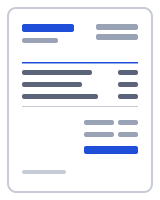
How to make a delivery note in one minute
- Fill in From (the sender) and Deliver to (the delivery address). If goods go to a site or a third party, this is the address the driver will use.
- Check the Delivery note number (its own DN- sequence) and the Date, then set the Delivery date and enter the Original invoice number or the customer's order number.
- Add one line per item with Description, Qty and Unit (pcs, boxes, kg). Prices are hidden by default; the Rate and Amount columns appear only if you switch on Show prices.
- Record the number of packages, pallets or the total weight in Notes, along with any handling instructions.
- Turn on the Signature line so it prints Received by with room for a name and date, choose the Compact template for long lists, then press Download PDF or Print two copies.
What to include on a delivery note
A delivery note answers one question for the person opening the boxes: is everything here that should be? So it lists items and quantities, names the order it fulfils, and gives the receiver somewhere to sign. Prices are left off, and the default Compact template gives the description column the room a long list needs.
The heading and a number. The document is titled Delivery Note; rename it Packing Slip if that is the term your customer uses. Each note takes a DN- number from its own sequence.
Sender, delivery address and delivery date. Your business goes in From. Deliver to is the address the goods are going to, which is often a site, a warehouse or a customer’s customer rather than the billing address. Delivery date is the day the goods are due or were handed over.
The order or invoice number it relates to. Original invoice number ties the note to the invoice it fulfils; if you are shipping against a customer’s purchase order, quote their PO number there or in Reference. This is how the receiver’s accounts team matches what arrived to what they are being billed for.
Each item with the quantity shipped. One line per product with Description, Qty and Unit: 12 boxes, 3 pallets, 40 kg. Prices are hidden by default and the totals block is not printed. Switch on Show prices only when the customer specifically wants a priced note.
Packages and weight. Where it helps the driver or the receiver, put the number of packages, pallet count, gross weight and any handling notes (fragile, keep upright) in Notes.
A Received by signature line. Turn on the Signature line and it prints Received by with space for a name, signature and date. The signed copy is your record that the goods were accepted.
Delivery note generator vs packing slip vs invoice
Three documents follow goods out of the door, and confusing them causes most delivery disputes. The purchase order, if there was one, is what the customer asked for. The delivery note is what you sent, counted by the receiver and signed. The invoice is what you are charging, and it can be checked against the signed note. Keeping the same line descriptions and quantities on all three is what makes that check quick.
The editor handles the sequence without retyping. Build the delivery note, print two copies, and get one signed. When it is time to bill, open the note in Recent documents and choose Convert to invoice: the lines and quantities carry across, prices come back on for you to fill in, and the invoice takes the next INV- number. For a shipment in several parts, Duplicate the note, adjust the quantities and keep the same order number on each.
Statuses (Draft, Sent, Void) are set by hand in Recent documents; Sent is a useful marker for a note that went out with the goods but has not come back signed yet.
Your data stays on your device
Delivery notes and the addresses on them are saved in your browser's local database; nothing is uploaded when you build or print one. The PDF is generated in your browser by a small worker; nothing is uploaded, and there is no account to create. Drafts, clients and your business profile live in your browser's local storage (IndexedDB), and one button under "Your data" deletes all of it. To verify, open your browser's developer tools, watch the Network tab while you fill in and download a document, and note that no request carries your details. Read the privacy policy and how it works for the details.
Templates, currencies and PDF output
| Templates | Classic, Modern, Minimal, Compact, Ledger, Receipt (6 layouts; accent colour and logo are yours). Prefilled invoice and receipt templates by trade open in the same editor. |
|---|---|
| Currencies | 68 ISO currencies with the right symbol and decimals, for example USD, CAD, GBP, EUR, AUD, INR and JPY. Country presets also set the tax lines and ID labels. |
| Paper sizes | A4 and US Letter; page numbers on multi-page documents |
| Numbering | Sequential per type, default prefix DN-0001, editable |
| Output | PDF download (text stays selectable), print, or a prefilled email with the PDF attached by you; file name Delivery-Note-number-client.pdf |
Frequently asked questions
What is the difference between a delivery note and a packing slip?
In practice they are the same list. A packing slip goes inside the parcel so the receiver can check the contents; a delivery note travels with the goods and is signed on handover. Both show items and quantities without prices. The editor treats them as one type; change the Document title to Packing Slip when that is the name your customer uses.
Should a delivery note show prices?
Usually not. The person unpacking a delivery needs to count boxes, not see what was charged, and a priced document in a warehouse can reach people who should not see it. Prices are hidden by default; switch on Show prices when the customer asks for a priced delivery note, for example to match against a purchase order.
What is the difference between a delivery note and an invoice?
A delivery note lists what was physically delivered and is signed by the receiver; an invoice states what is owed and when. One invoice can cover several deliveries, which is why the delivery note carries the Original invoice number or order number rather than a total. The invoice, not the delivery note, is what gets paid.
How should I number delivery notes?
Keep an unbroken DN- sequence separate from invoices and orders, so a signed note can always be traced. The editor holds its own counter for delivery notes and warns if a number repeats. On each note, quote the invoice or order number too, so the documents for one sale point at each other.
Is a signed delivery note proof of delivery?
A Received by signature with a printed name and date is the usual evidence that goods arrived and were accepted, and it is what most disputes about short or damaged deliveries turn on. Whether it settles a particular dispute depends on your terms of sale and local law, which this page cannot advise on. Keep the signed copy.
How do I handle a partial delivery?
List every item on the order and put the quantity actually shipped in Qty; for back-ordered lines enter 0 and say in the description when the rest will follow, or list only the shipped items and note the outstanding ones in Notes. Each later delivery gets its own note with the same order number, so the receiver can add them up.
How do I send or print a delivery note?
Print two copies: one travels with the goods and comes back signed, one stays with you. Print uses the same layout as the PDF, so nothing shifts. For a courier or a customer who wants it in advance, press Download PDF or Email, which opens your mail app with the subject and a short note prepared.
Can I create the invoice from the delivery note?
Yes. Open the note in Recent documents and choose Convert to invoice. The customer and every line carry across with the quantities shipped, prices are switched on, and the new invoice takes the next INV- number; add the rates, terms and payment details, and put the delivery note number in Reference. The note stays in history.
Related
- Free invoice templates by trade, plus receipts and quotes
- Invoice requirements by country: what each preset changes
- Free invoice generator
- Free purchase order generator with vendor and ship-to blocks
- Free proforma invoice generator (pro forma)
- Trucking invoice template with fuel surcharge and detention lines
- Commercial invoice template with HS codes, origin and incoterm
- Invoice generator UK: VAT invoices at 20%, 5% or 0%
Last updated 2026-09-27. Presets are starting points — confirm current rates and requirements with your tax authority. PDF engine: pdfmake (MIT); fonts: Inter and Noto Sans (SIL Open Font License).